
How to Add an AI Chatbot to Your Website (Step-by-Step)

Written By : Shantilal Matariya

Published on : July 2, 2025

7 min read


Integrating an AI chatbot into your website is a smart way to assist your visitors, quickly answer questions, and enhance your customer support, even when you’re not online. An AI chatbot can chat with visitors 24/7, save you time, and add professionalism and assistance to your website.
You might think it is going to be difficult to set up, but the truth is, you can create and add chatbot to your website in a few simple steps with the right tool. Today, most businesses utilize chatbots for up to 70% of customer interactions without a live representative.
In this simple step-by-step guide, we’re going to show you precisely how to add chatbot to website. You will learn how to install it, customize its messages, and add it to your website so it can provide help to your visitors at any time.
Let’s get started and build your chatbot!
Why You Should Add the Best AI Chatbot for Websites
Incorporating an AI chatbot for a website is not just a convenience; it’s a move that meets current users’ expectations and business effectiveness.
With AI chatbot integration with website, it’s easier than ever to set this up and start helping your visitors right away.
Here are some strong reasons why you might want to consider
Helps You Find Sales Leads
Chatbots can ask visitors if they want your products/services, get their contact details, and even help schedule meetings, just like a sales assistant.
Grows with Your Business
When your business gets more traffic, chatbots help deal with the extra visitors without having to hire more staff. It is an easy way to cater to more customers without having to spend more money.
Collects Useful Data
Chatbots can collect data around what people ask, what products they view, what problems they ask about, etc. This data is useful for improving your offerings or helping services, etc.
Saves Time for your Team
Your support team doesn’t have to respond to the same question over and over again. Instead, chatbots respond to those repetitive questions, and your teams’ valuable time can be focused on working on whatever is a priority or more complex.
Better Customer Experience
No one likes waiting for answers. Using a chatbot platform provides a quicker response time and gives people the ability to get what they want without searching multiple pages or waiting for someone to respond.
By deciding to add an AI chatbot to your website, you’re equipping your business with a tool that enhances performance, user satisfaction, and long-term growth potential.
How to Add an AI Chatbot to Your Website
Smartconvo is a user-friendly AI chatbot platform designed for seamless adding a chatbot to your website across different site types. Here’s how to embed your chatbot into the Smartconvo environment step-by-step:
Step 1: Log In to SmartConvo
Start by visiting Smartconvo. Click on Sign In at the top-right corner. If you don’t already have an account, select Get Started to register. After logging in, you’ll be directed to the SmartConvo dashboard.
Here, you can start a free trial and access various features such as Custom Bots, Train on Your Data, AI Copilot, and more.
Step 2: Create an AI Chatbot Folder
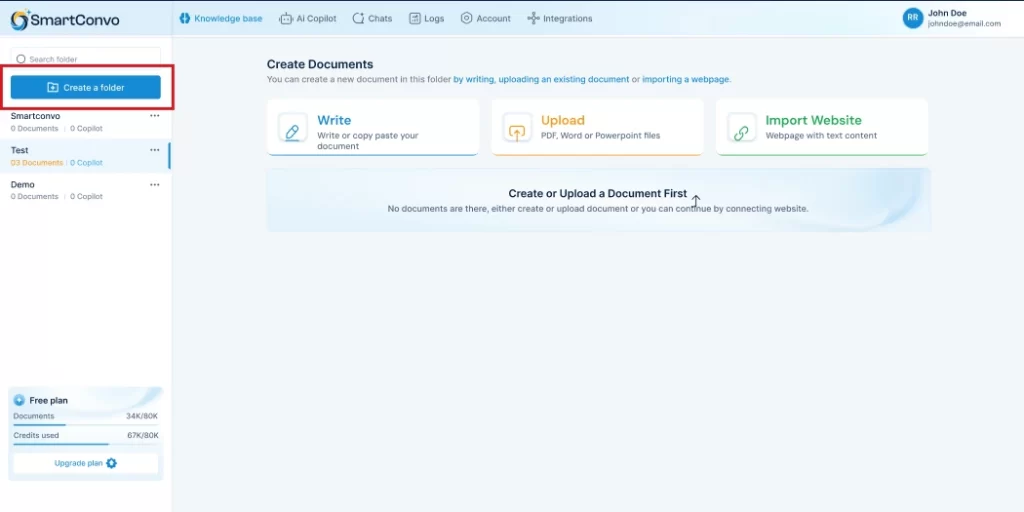
In the left-hand panel under Created Folders, click Create a folder. Choose the folder name according to the purpose of your chatbot. This folder will serve as the central location for all your chatbot documents and projects, keeping everything organized.
Step 3: Create a Document for Training
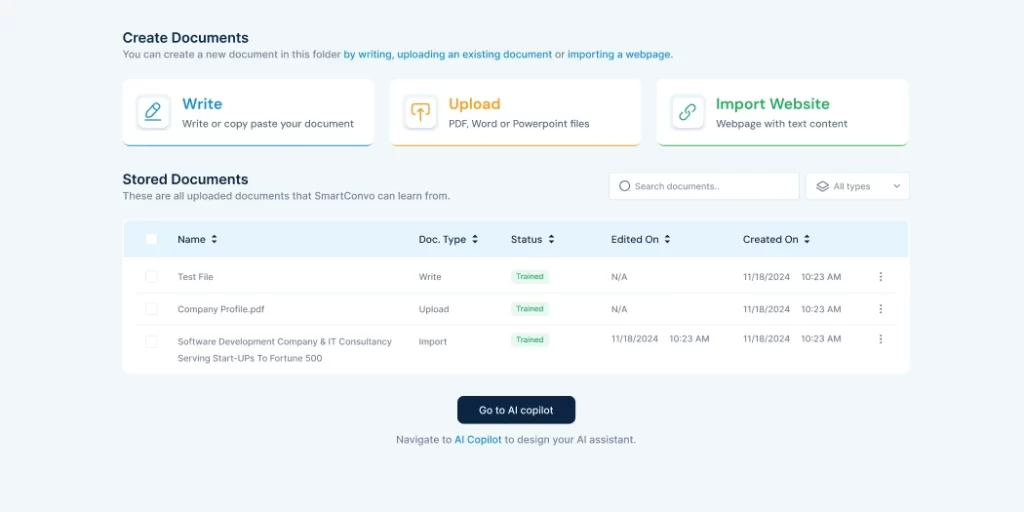
Open the folder you just created. You can now add content that will train your chatbot to understand and respond appropriately. Choose one of the following options:
- Write: Manually type or paste your content.
- Upload: Import PDFs, Word documents, or text files.
- Import Webpage: Add content from any website URL.
- Google Drive: Directly import documents from your Google Drive.
These documents provide the knowledge base your AI chatbot will use to generate responses.
Once your content is uploaded and organized, proceed to the Copilot section to begin building your actual chatbot.
Step 4: Create and Configure an AI Copilot
Next, go to the left panel and click on Create an AI Copilot. Assign your Copilot a meaningful name and write a brief description of its function. Under the LLM Model Configuration, you can select your preferred AI model.
The SmartConvo model is recommended and requires no additional setup. You can also choose OpenAI if you have a custom API.
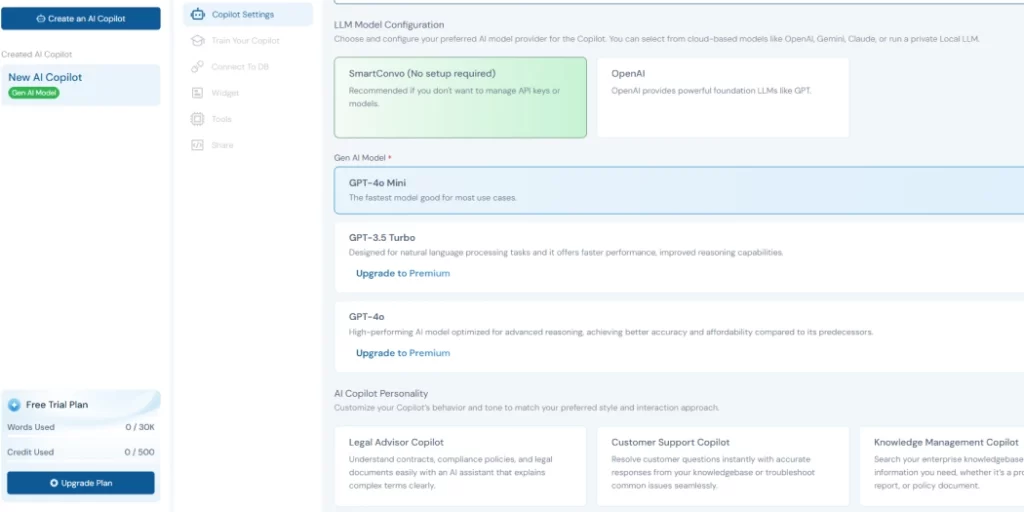
To set up your Copilot, first pick an AI model—like GPT-4o Mini for speed, GPT-3.5 Turbo for language tasks, or GPT-4o for smarter replies. Then choose a role that fits your needs, like legal, HR, IT, or sales.
You can also write your instructions if you want. Next, decide how it should reply—automatically or with a custom message. You can also choose to show or hide sources in the answers. When you’re ready, just click “Save & Next” to finish and turn it on.
After you train your Copilot, connect it to your database so it can access the right information. Then, adjust the general widget settings, like the welcome message or where it appears on your site.
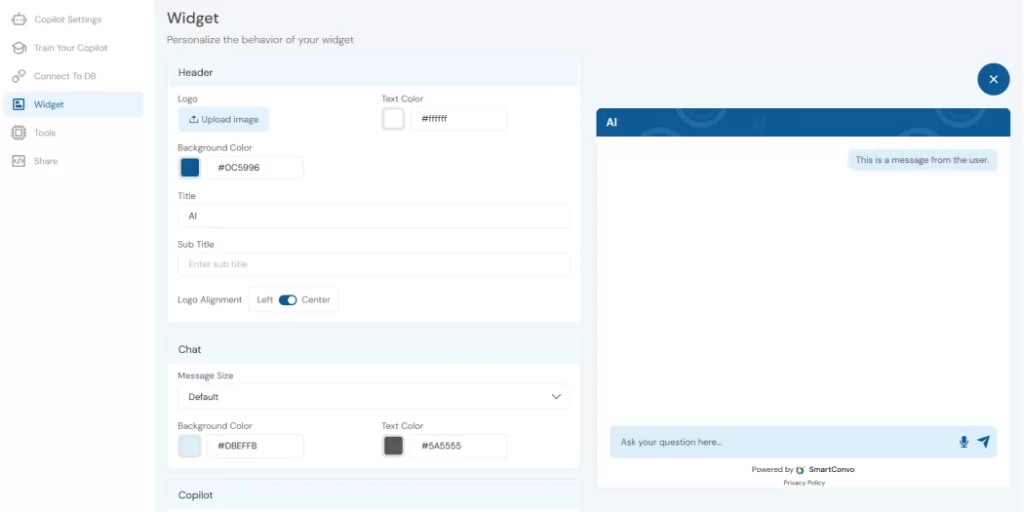
Pick a theme that matches your brand style, and add any extra tools you need, such as file upload or scheduling. Once everything looks good, your Copilot is ready to go!
Step 5: Get the Chatbot Embed Code
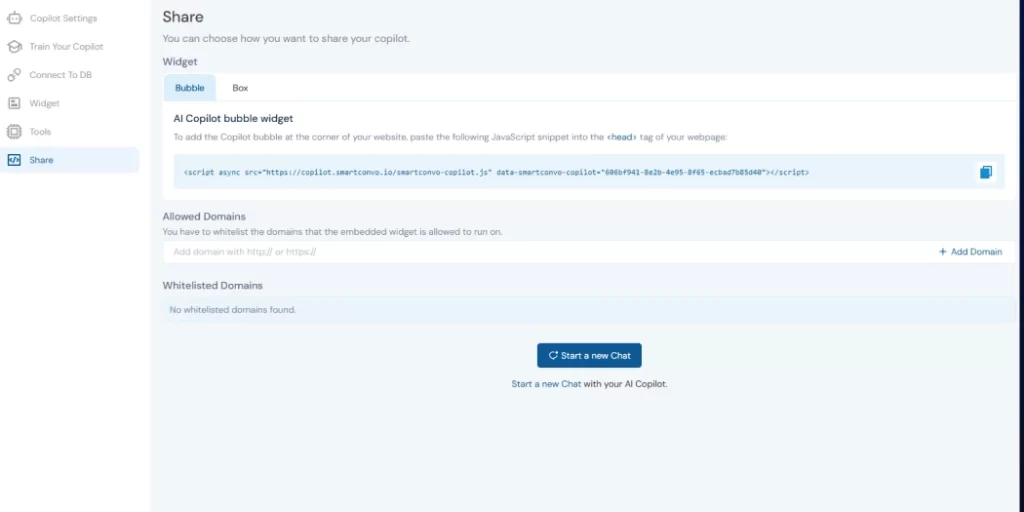
Go to the Widget section within your Copilot’s settings. SmartConvo will provide you with a JavaScript embed code. Copy this code snippet—it’s what you’ll need to display your chatbot on your website.
Step 6: Install the Chatbot on Your Website
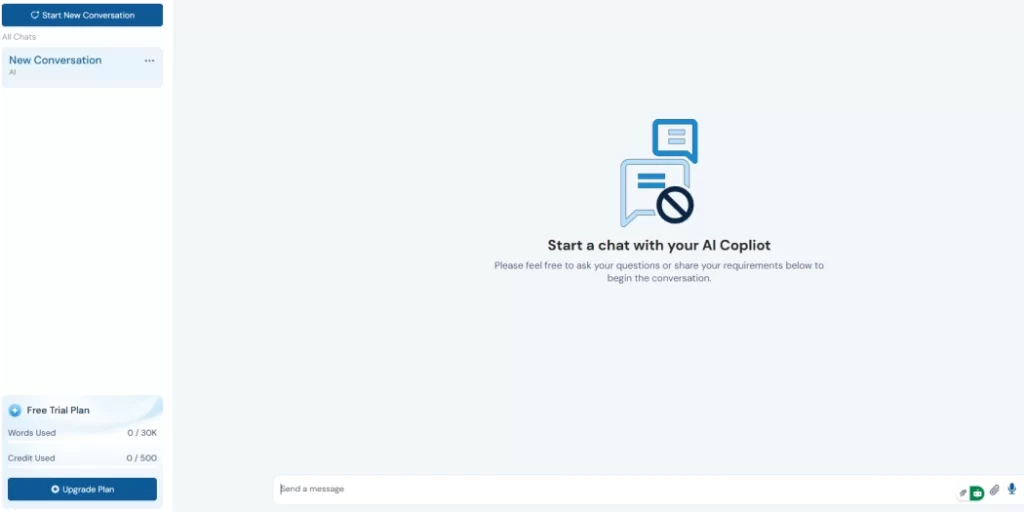
Now it’s time to embed your chatbot. Open your website’s HTML file or dashboard and paste the copied embed code just before the closing </body> tag.
- For WordPress, use the Insert Headers and Footers plugin.
- For Shopify, insert the script in the theme.liquid file.
- For Wix or Squarespace, paste it into the custom code section found in settings.
After saving your changes and publishing the site, refresh your webpage. Your AI chatbot should now be live and ready to interact with visitors.
AI Chatbot for a Website: Use Cases & Benefits
AI chatbots are extremely valuable tools for all sorts of businesses.
When you add an AI chatbot to your website platform, it can answer questions, provide personalized assistance, and make things faster and easier for both customers and teams alike.
Here’s how different industries use them:
E-commerce Stores
E-commerce stores can use chatbots to help customers find products quickly, check on orders, and answer questions regarding returns or shipping. Chatbots can also suggest items to customers based on the customers’ preferences.
Benefits:
- Keep customers engaged with helpful, personalized replies
- Save money by handling common questions automatically
Service-Based Businesses
If you offer services like cleaning, consulting, or beauty care, chatbots can explain your services, answer customer questions, and send updates or reminders—any time, even after hours.
Benefits:
- Make sure customers get info 24/7
- Give a professional, consistent experience
IT Companies
In tech support, chatbots can answer basic technology questions, guide users through the setup, or report issues to your team when required. Chatbots make support easy and efficient.
Benefits:
- Handle repeated questions so your team can focus on harder tasks
- Share correct and helpful info every time
Conclusion
Incorporating an AI chatbot on your website is a great way to enhance customer engagement. When you add chatbot to website platforms like Smartconvo, you can offer real-time answers, personalized assistance, and faster, more efficient communication—without needing any coding.
With simple website chatbot integration, these tools can be up and running in minutes, improving how you connect with visitors right from the start.
AI is a great supplemental tool, but it’s still best to have people behind your business. Make sure someone is managing training, checking the response outputs, and providing the customer the ability to communicate with a human when they request.
AI chatbots combined with human interaction will create an enhanced customer journey for your visitors.
No Credit Card Required | 14 days Free Trial
Build Your Chatbot
Frequently Asked Questions (FAQ)
Log in to SmartConvo and create your business AI chatbot, and then embed a chatbot widget script or use a plugin to connect the AI tool to your site.
No, many AI chatbot platforms offer no-code setup with simple copy-and-paste scripts or plugins.
Use no-code chatbot tools like SmartConvo that offer simple setup and quick embedding.
Not entirely. It handles common questions, but real people are still important for complex or sensitive issues.

With 8+ years of experience as a software engineer in the IT field, an Elite in Back-end development, DevOps, and Project & Team Management. Read more